
What is Checkit?
Checkit wireless sensors measure the temperature of your fridges and freezers every 5 minutes and trigger an alert if they go out of range, so you don’t need to do manual temperature checks.
Checkit Kit & Tools
You will have the following Checkit kit on site:
-
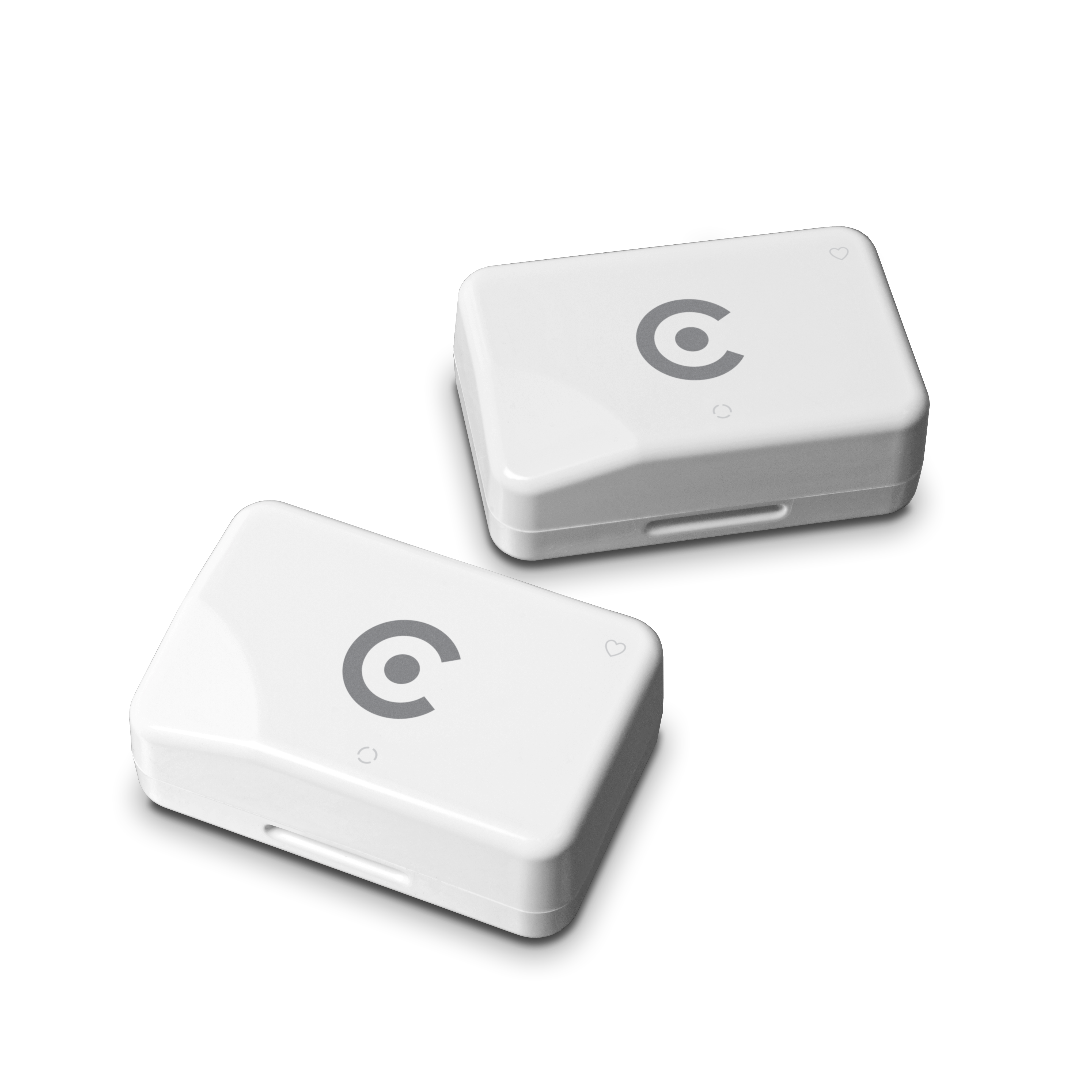
Sensors: which take temperature readings
-
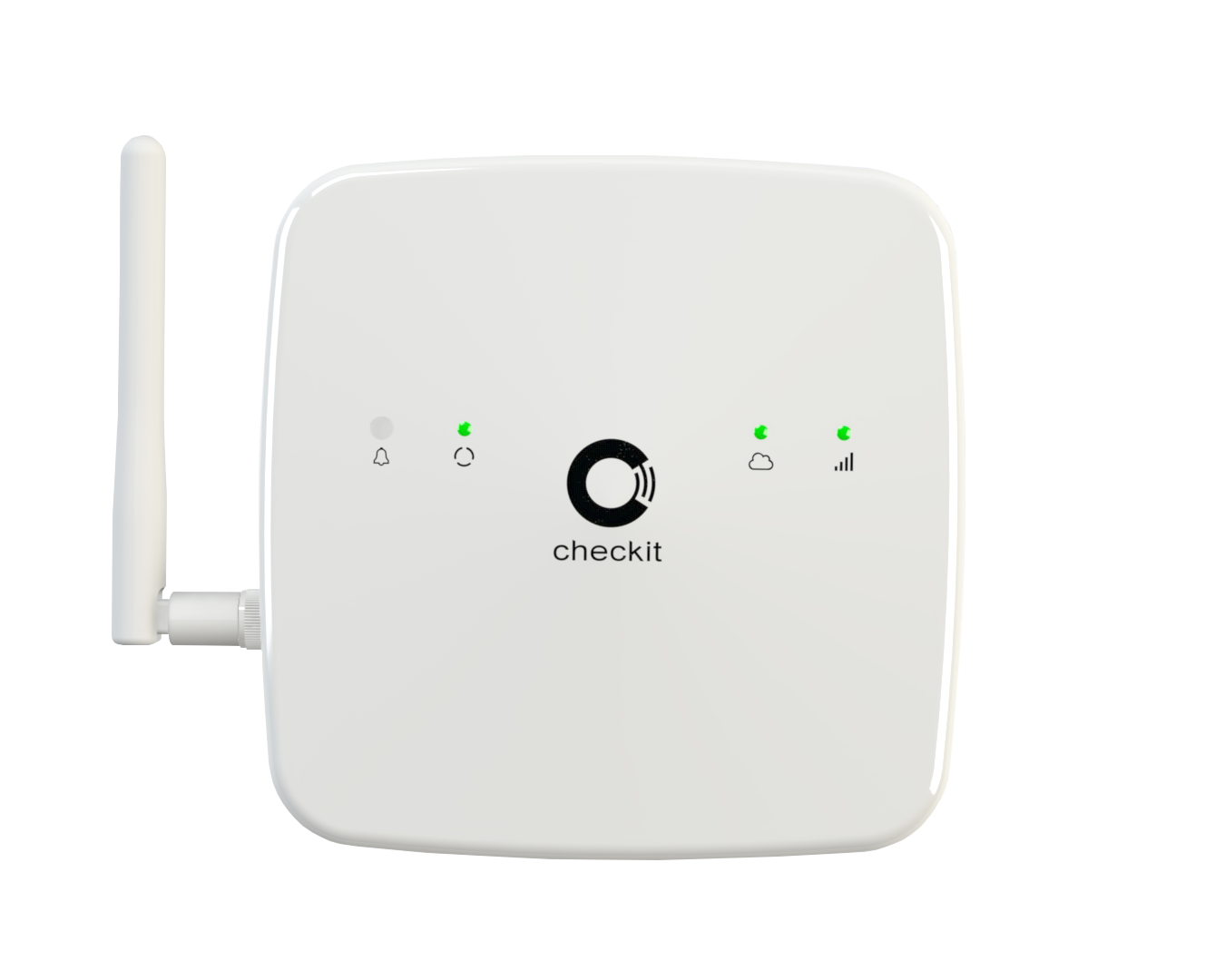
The Hub: which receives data from sensors and sends the data to the cloud every 15 minutes
-
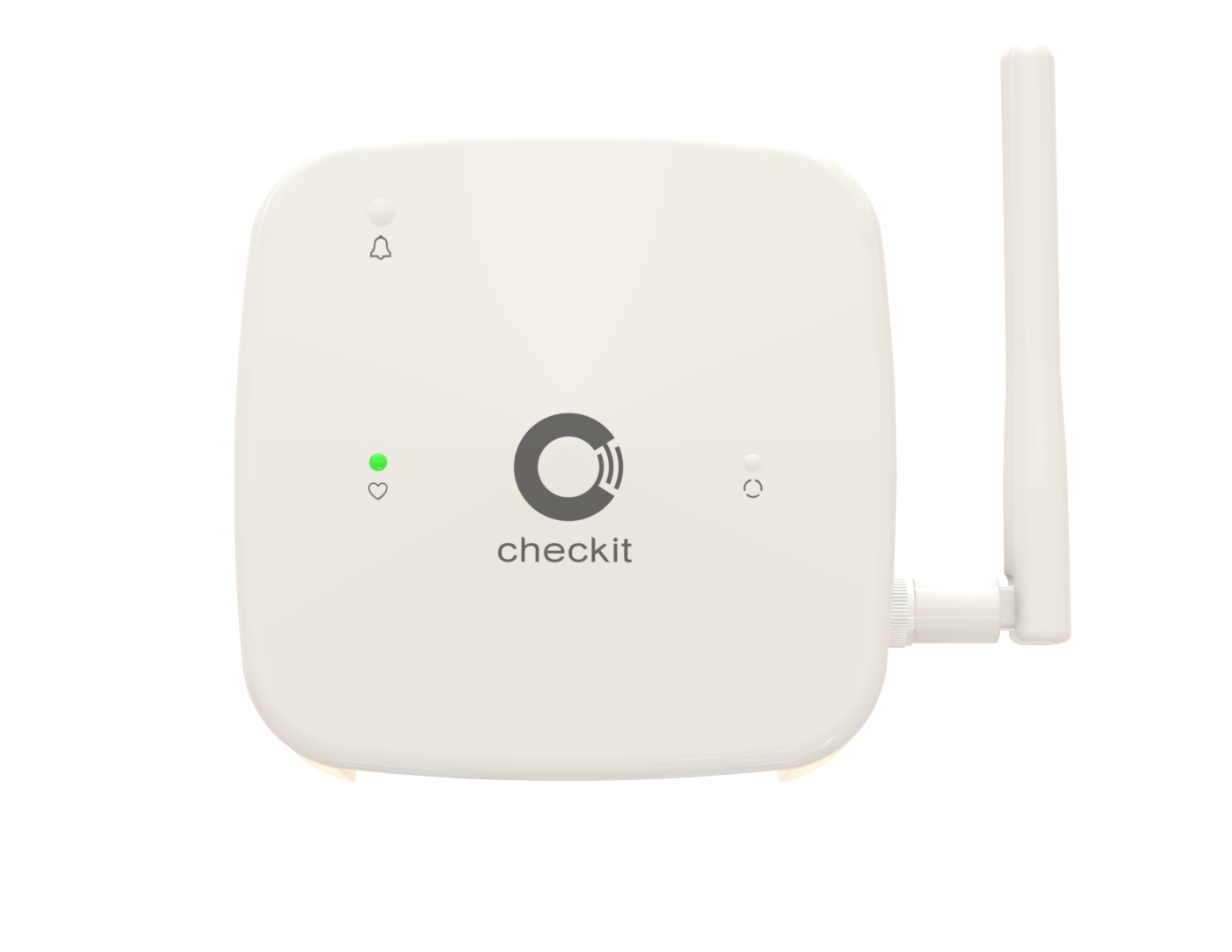
Repeaters: which extend the wireless signal range between sensors and the Hub, if necessary
You will also have access to the following tools:
-
The Checkit App: a mobile app which generates a notification when an alert occurs and launches a digital checklist to help you resolve the issue.
-
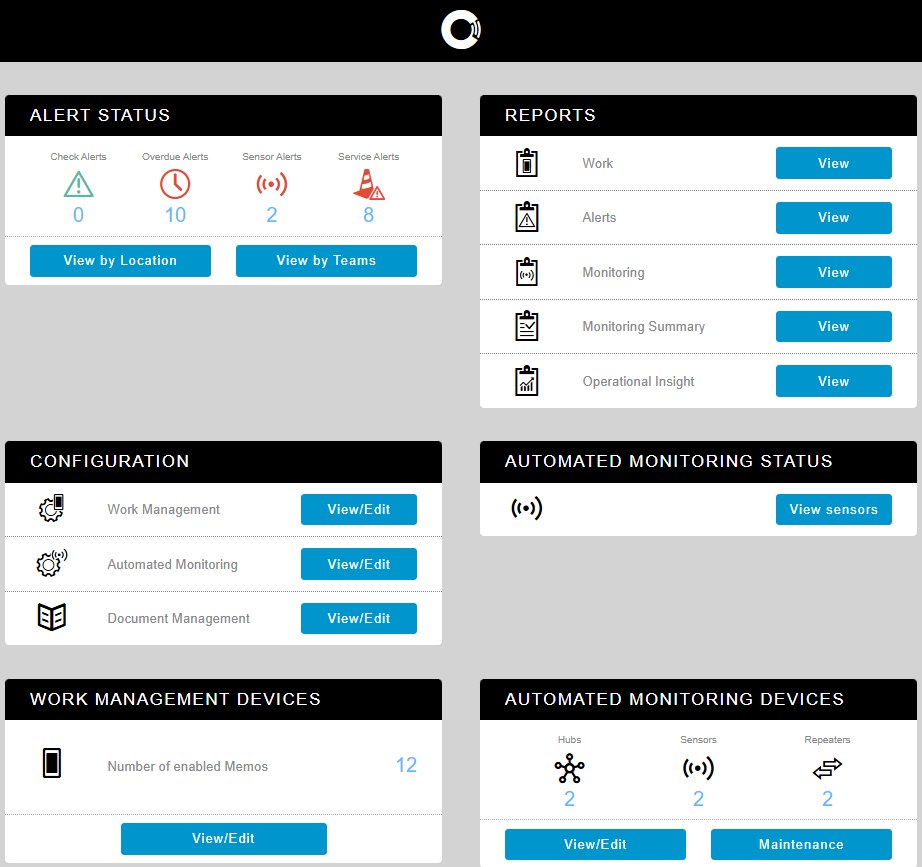
The Control Centre: a cloud portal where you can view sensors and reports, and manage alerts and users.
Alerts
We will generate a:
-
Sensor Alert if a sensor detects that the temperature has gone out of range for too long
-
Service Alert if a sensor, the Hub, or a repeater goes offline - i.e. cannot communicate with the cloud (see our troubleshooting guides to get the device back online)
Supervisors, Safety Managers, and Administrators receive alert notification emails from alert@checkit.net. The Checkit App also generates a notification when an alert occurs.
You can manage alerts on the Checkit App and in the Control Centre.
All alert activity is recorded in the Alerts Report.
If a device goes offline, don’t worry. Sensors will continue to take readings and store the data in their internal memory until connection is restored, so your records will be complete. However, you will not receive alerts while the device is offline, so it’s important to resolve the issue as soon as possible.
User Roles
There are 3 user roles. Your role will determine your responsibilities.
-
Supervisors are responsible for managing alerts on the Checkit App, managing sensor alerts in the Control Centre, generating reports, and managing users. They have access to both the Checkit App and the Control Centre.
-
Administrators are responsible for setting up the Checkit App and managing service alerts in the Control Centre. They do not have access to the Checkit App.
-
Safety Managers are responsible for managing both sensor alerts and service alerts in the Control Centre, generating reports, and managing users. They do not have access to the Checkit App.
You may be assigned multiple roles.
How to Set Up The Checkit App on a Mobile Device
You must be an Administrator to set up the Checkit App on a mobile device.
-
On your mobile device, go to the Play Store or App Store as applicable.
-
Search Checkit Digital Assistant (on the Play Store) or Checkit CWM (on the App Store).
-
Tap Install.
-
Allow all permissions.
-
Open the app.
-
Select a language.
-
Connect the device to the internet (if it isn’t already).
-
Enter your Control Centre login details.
-
Select the location where you want to register the device.
-
Name the device. Descriptive names indicating the location and/or how it will be used are helpful for reporting, for example, "Kitchen".
-
Check the device setup details, then click Confirm.
-
Confirm the device settings (date format, time format, time zone, temperature).
-
Select Continue when complete.
How to Manage Alerts in the Checkit App
You must be a Supervisor to manage alerts in the Checkit App.
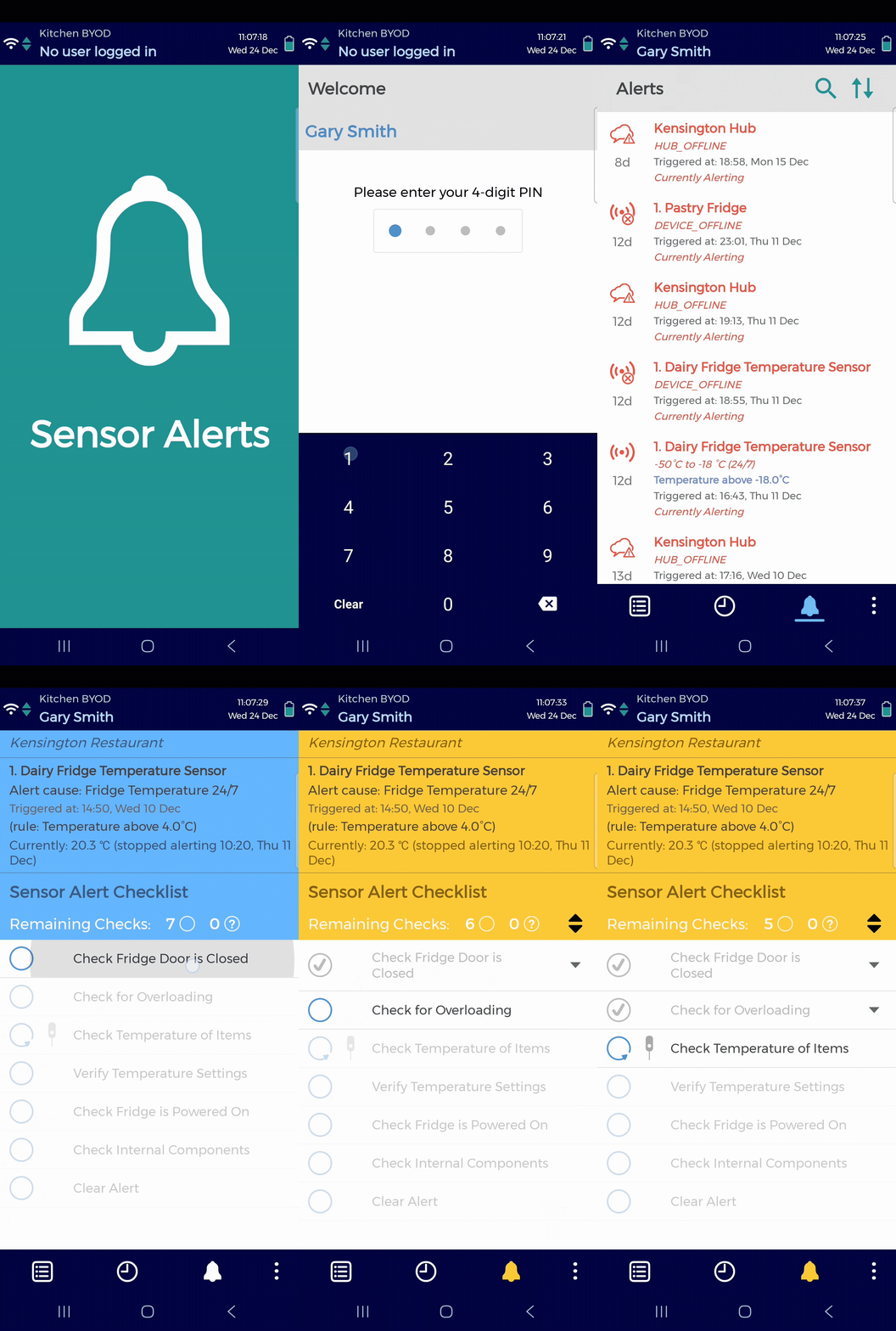
You will receive a notification on the app when an alert occurs.
-
Tap the notification; this will take you to the login screen.
-
Enter your 4-digit PIN.
-
Tap the bell icon. You will see a list of alerts and details, including:
-
Which device is alerting
-
When the alert was triggered
-
What triggered the alert (temp out of range/device offline)
-
The acceptable temp range (if it’s a sensor alert)
-
If the device is still out of range/offline or not
-
-
Tap and alert to launch a checklist to help you resolve the issue.
-
When you open the checklist, you will see a list of checks. If a check is:
-
Mandatory: it will display a circle icon
-
Optional: it will display a question icon
-
Repeatable: it will display an arrow icon (you can repeat these checks as many times as necessary)
-
-
Tap a check to open and complete it. Depending on the check, you may be required to confirm that you’ve completed a task, select an option, enter some text, enter a number, enter a date, or enter a temperature.
-
When you’ve completed all checks, the checklist will close automatically. If the checklist contains optional or repeatable checks, you can tap I’m done when you’re ready to close the checklist.
You will not be able to complete the final check until the temperature is back in range.
-
To log out, tap the 3 dots and then log out.
How to View Sensors in the Control Centre
To view sensors in the Control Centre:
-
Log in to the Control Centre at app.checkit.net.
-
Go to Automated Monitoring Status> View Sensors.
-
Then select a location from the panel on the left. You will see a list of sensors displaying the latest reading and when it was taken.
Sensors appear in four colours:
-
Green = no alert
-
Amber = there are alerts, and all of them have been acknowledged
-
Red = there are alerts, and one or more haven’t been acknowledged
-
Black = the sensor is offline (see sensor troubleshooting guide to resolve the problem)
-
To view more details, click on a sensor. You will see:
-
A graph plotting the sensor’s readings
-
An alert icon displaying the number of active alerts triggered by the sensor (if applicable)
-
How to Manage Alerts in the Control Centre
The type of alerts you can see depends on your user role. Supervisors only see sensor alerts. Administrators only see service alerts. Safety Managers see both types of alerts.
If a member of staff completes an alert checklist on the Checkit App, the alert will be cleared from the Control Centre.
If you clear an alert on the Control Centre, the alert will also be cleared from the Checkit App. However, if the checklist has already been started on the app, it must be completed to remove it.
To manage alerts in the Control Centre:
-
Log in to the Control Centre at app.checkit.net
-
Go to Alert Status>View by Location or View by Teams.
-
Select the location or team that triggered the alert. You will see a list of alerts ordered by most recent.
Alerts appear amber if they have already been acknowledged, or red if not.
-
Click on an alert to view details.
-
In the Alert Details field, type what has been done to resolve the issue, for example: “maintenance team scheduled to service fridge”. Then click Acknowledge to save your comments. You can add as many comments as necessary.
-
When the issue has been resolved, you can enter a comment, for example: “issue resolved”. Then click Clear Alert to remove it from the list.
How to View & Export Reports in the Control Centre
Administrators can only view & export the Alerts Report.
You can view the following reports in the Control Centre:
-
Work Report: a record of work completed on the Checkit App
-
Alerts Report: a record of all actions taken to resolve an alert
-
Monitoring Report: a table displaying sensor readings
-
Monitoring Summary Report: a graph displaying sensor readings
To view reports:
-
Log in to the Control Centre at app.checkit.net.
-
Click View on the report you want to generate.
-
Select a location.
-
Then filter the data.
You can view reports from up to one year ago in the Control Centre. If you need data from a date prior to this, please contact us.
-
Click Generate or the search icon.
-
To download the data to Excel, click Export.
You can export up to 1 month of data at a time.
How to Add Users in the Control Centre
-
Administrators can only add Administrator and Safety Managers.
-
Safety Managers can only add Safety Managers and Supervisors.
-
Supervisors can only add other Supervisors to their team.
To add a user in the Contro Centre:
-
Log in to the Control Centre at app.checkit.net.
-
Go to Configuration>Work Management>View/Edit.
-
Select the Who tab.
-
Click the Users tab on the top left of the screen.
-
Click +Add new users.
-
Enter their name.
-
(Optional) Enter their phone number.
-
Assign a role to the user. To do so:
-
Click the field below the role.
-
Select a team or location from the drop-down menu.
-
-
Supervisors are responsible for managing sensor alerts in the Control Centre, generating reports, and managing users. They have access to both the Checkit App and the Control Centre. They are assigned to teams.
-
Administrators are responsible for setting up the Checkit App and managing service alerts in the Control Centre. They do not have access to the Checkit App. They are assigned to locations.
-
Safety Managers are responsible for managing both sensor alerts and service alerts in the Control Centre, generating reports, and managing users. They do not have access to the Checkit App. They are assigned to locations.
Do not select the Operator role. This type of user does not receive alert notification emails and does not have access to the Control Centre.
-
If the user is:
-
An Administrator or Safety Manager, enter their email to access the Control Centre
-
A Supervisor, enter a 4-digit pin to access the app and their email to access the Control Centre
-
-
Click Save.
If you created a Supervisor, please inform them of their PIN to access the app.
The user will receive an email from auth@checkit.net with a link to create a Control Centre password. This link will expire after 24 hours.
National Trust Resources
The following materials are provided by the National Trust. Checkit does not control or take responsibility for the content, accuracy, or use of these materials.
Frequently Asked Questions
The frequently asked questions document includes detailed information about the system, including:
· the process for site survey, remedial IT work (where required) and installation
· information about how the system is paid for
· how system training is delivered
Further information is also available in the Temperature Monitoring section of the Food Safety Management System
System Training Materials
· Training presentation narrated by Dave Griffin (Food Quality and Safety Manager)
· Training presentation slides
· Food safety poster – automatic temperature monitoring: action required in case of an alert