
Overview
The Documents feature allows users to access useful reference materials directly from the Checkit Control Centre and the Checkit Android App.
Typical examples include equipment manuals, Standard Operating Procedures (SOPs), safety guidance and training materials.
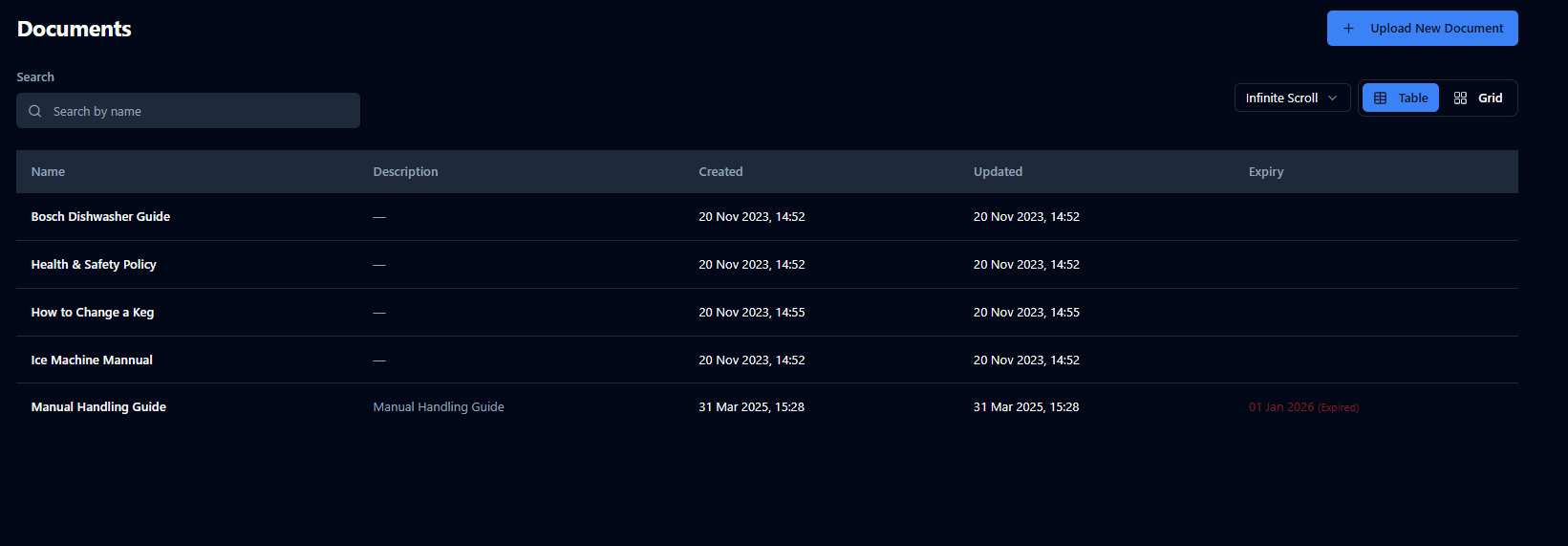
Documents are uploaded as PDF files and are available to view in the Control Centre. To make a document available in the Checkit App, it must be assigned to one or more locations. Once assigned, the document will be available on mobile devices at those locations.
You can also add hyperlinks to documents in checks, allowing users to quickly access relevant information while completing work on the Checkit App. For more information, see Add Links to Checks.
Documents is an optional feature. Please contact us to enable it.
Accessing Documents
To access documents:
In the Control Centre
-
Select Documents from the side menu to browse and view available documents.
-
In the Current File field, click the Download icon.
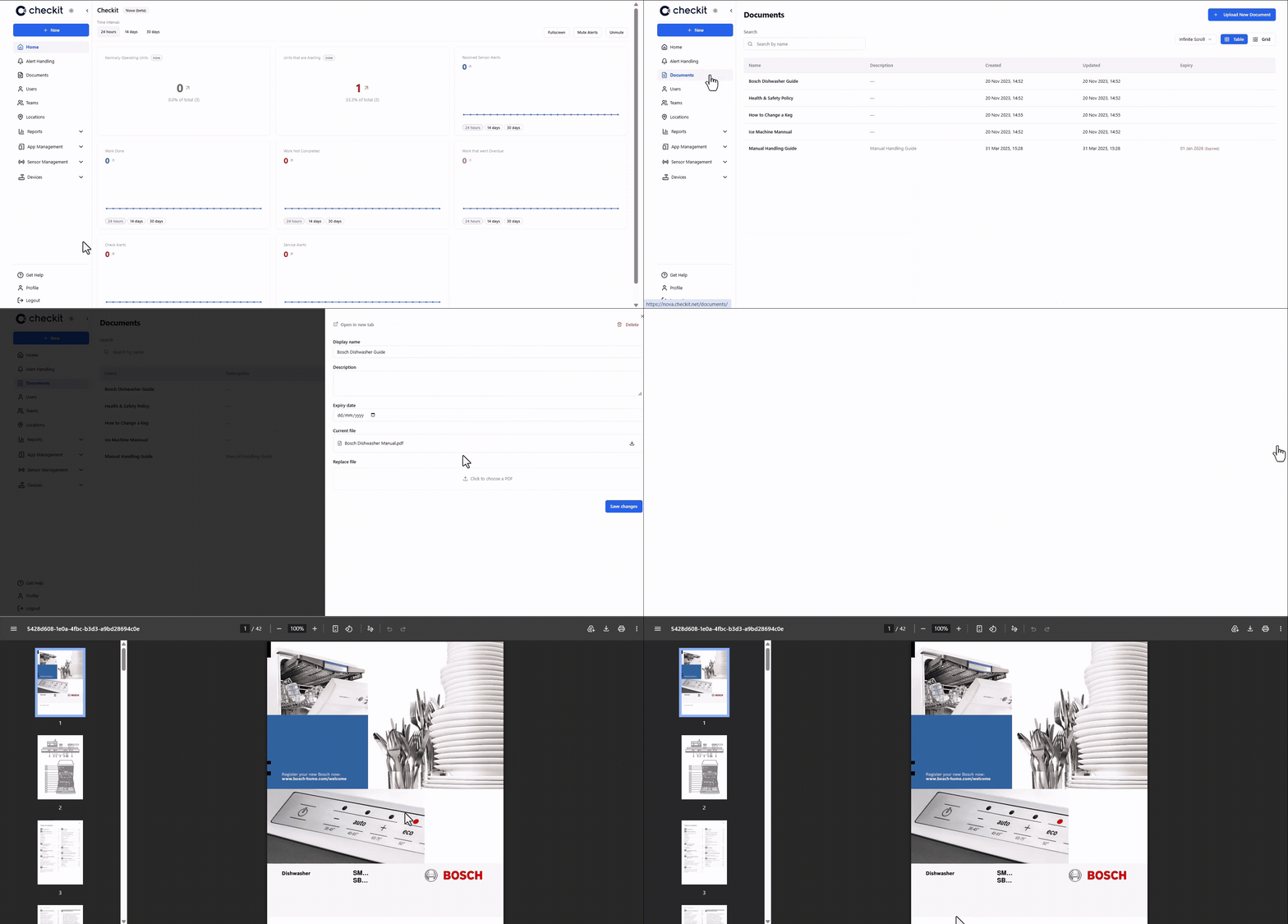
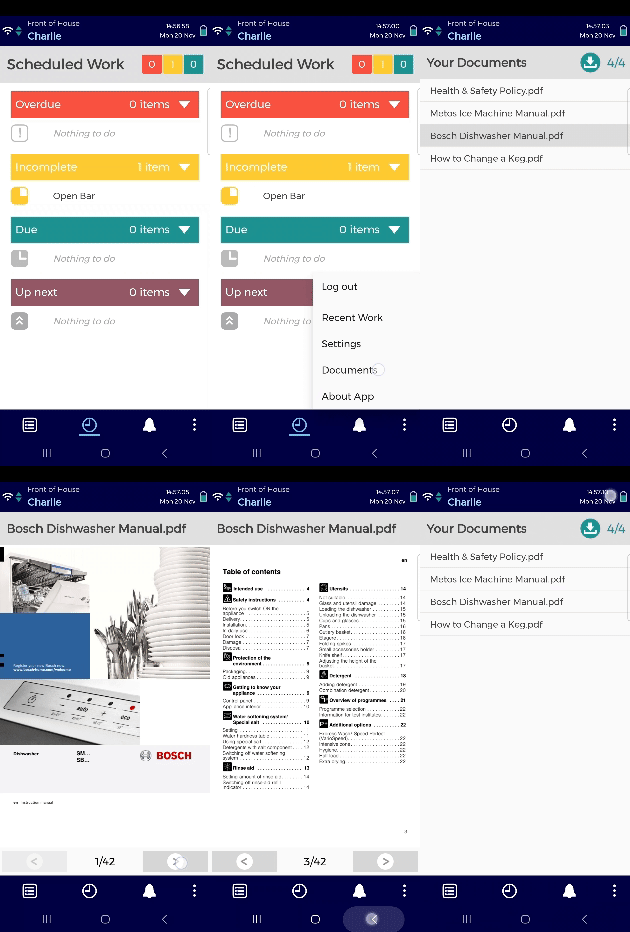
On the Checkit Android App
-
Open the menu and select Documents to view all documents assigned to your location.
Documents are not currently supported on the Checkit iOS app.
Configuration
How to Upload a Document
You must be a Safety Manager or Administrator to upload a document.
-
Log in to the Control Centre.
-
Go to Documents.
-
Click Add New Document.
-
Enter a name.
-
(Optional) Enter a description.
-
(Optional) If the file will only be valid for a limited time, enter an expiry date.
-
Select the file from your browser.
-
Click Upload.
How to Make a Document Available on the Checkit App
You must be a Safety Manager or Administrator to make a document available on the Checkit App.
If you assign a document to a location, it will be available on all mobile devices assigned to that location.
-
Log in to the Control Centre.
-
Go to Locations.
-
Select the location where you want to make the document available.
If you assign a document to a location, it will be available on all mobile devices assigned to that location.
-
Select the Settings tab.
-
In the Documents section, select a document to assign.
-
Click Save.
-
Repeat steps 3-6 until the document has been assigned to all required locations.
The document will not be visible on the device until you log out and log back in again.