
Mute Alerts allows you to temporarily silence a sensor’s alerts.
You may want to mute a sensor’s alerts if a refrigeration unit is not in use, is being serviced, or is out of order (see image 1).
While alerts are muted, the sensor will still take readings, but it will not trigger an alert.
If the sensor goes out of range during this time, the event will still be recorded in the Alerts Report and will be automatically marked as muted. If the sensor is still out of range after the mute period ends, an alert will be triggered.
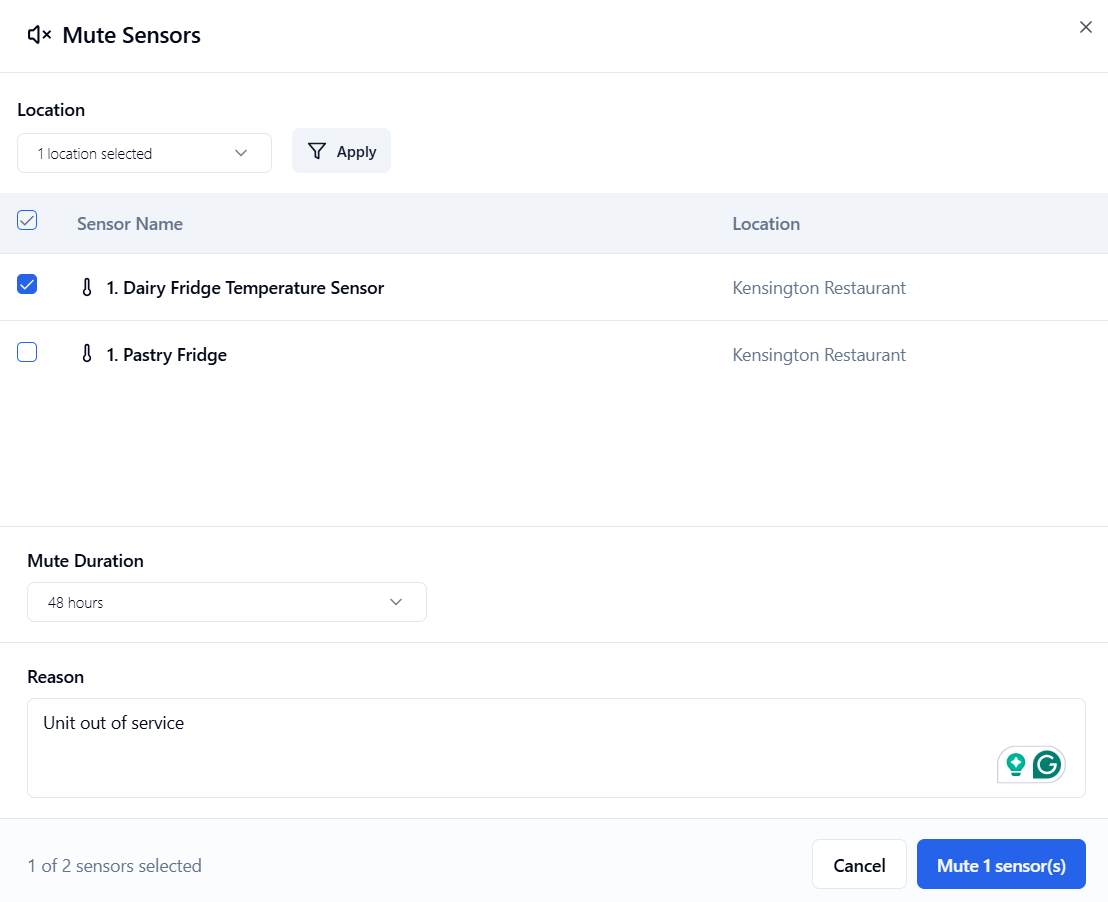
How to Mute a Sensor’s Alerts
You must be a Safety Manager to mute alerts.
-
Log in to the Control Centre.
-
Click Mute Alerts. You will see a list of all sensors.
-
Filter the sensors by location.
-
Check the box on the sensor(s) you want to mute.
-
Select a mute duration.
-
Enter a reason, for example, unit out of service.
-
Click Mute # Sensors.
How to View Muted Sensors / End a Mute Early
Muted alerts will end automatically after the configured time period. You can also end a mute early if the unit is back in use sooner than expected.
-
Log in to the Control Centre.
-
Click Unmute. You will see a list of all muted sensors, including their location, the reason they are muted, and when the mute ends.
-
To end a mute, check the box on the sensor(s) and click Unmute # Sensors.