If the probe does not pair with your mobile device, possible causes are:
-
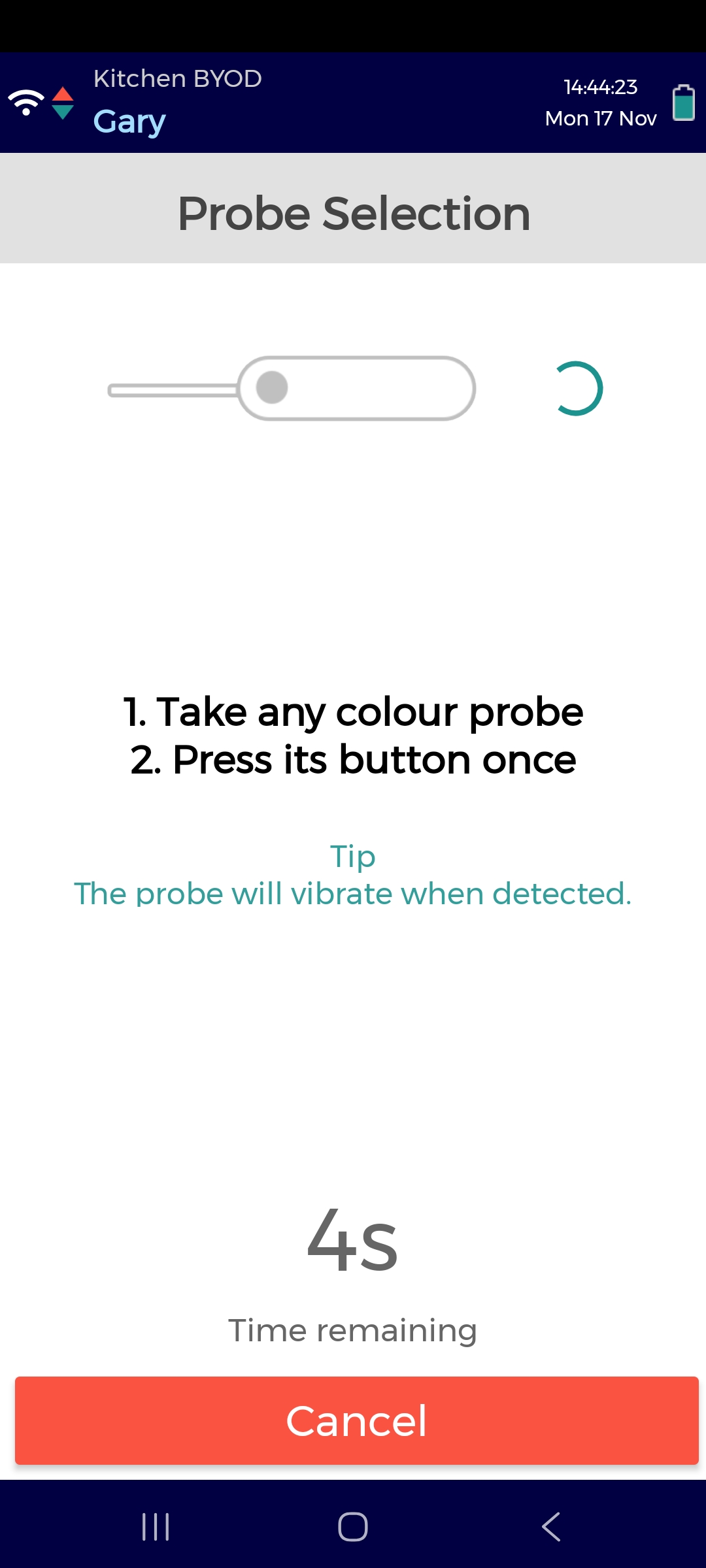
Button not pressed correctly — Press the button on the probe once when instructed to do so on the app screen (see image 2). Do not hold it down.
-
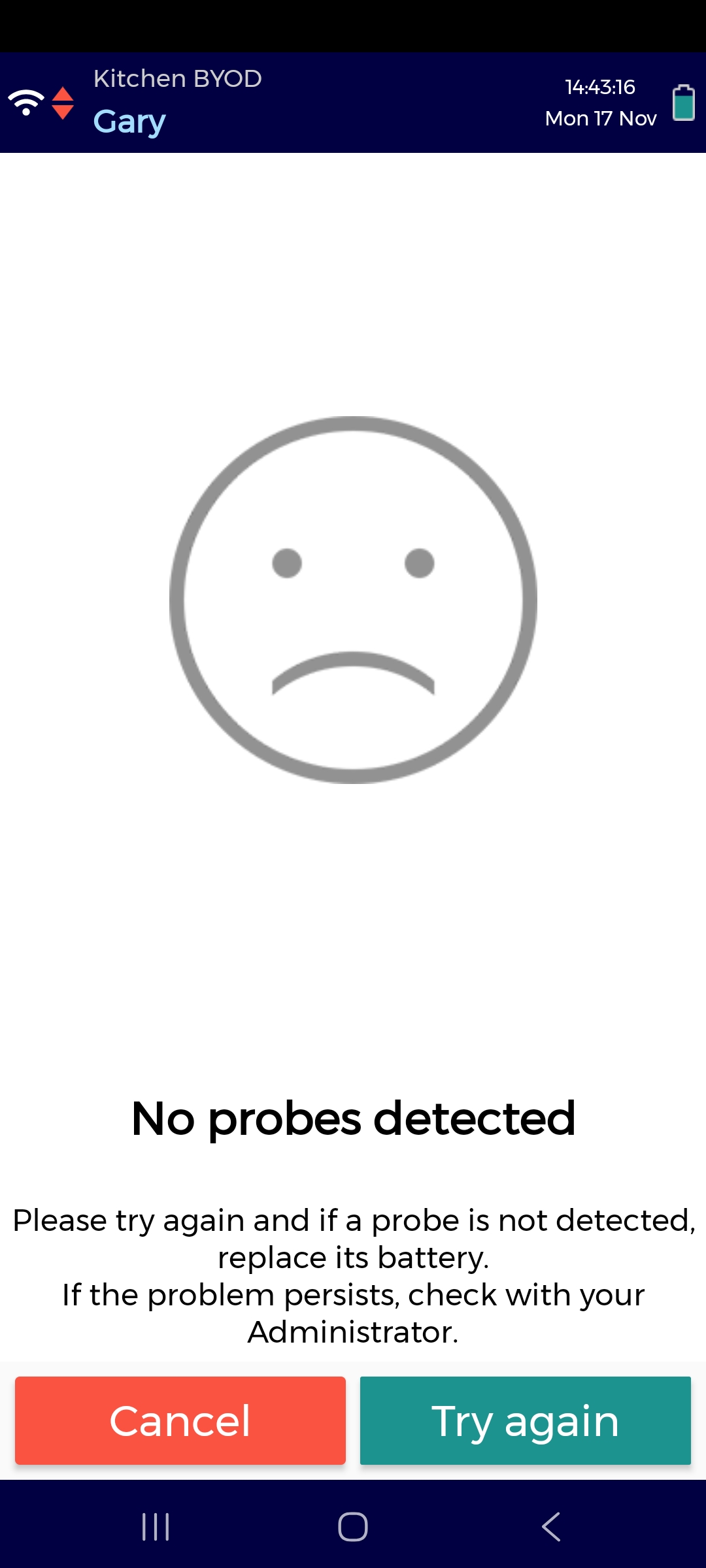
Temporary pairing glitch — Tap Try again on the app (see image 3), then press the button on the probe again.
-
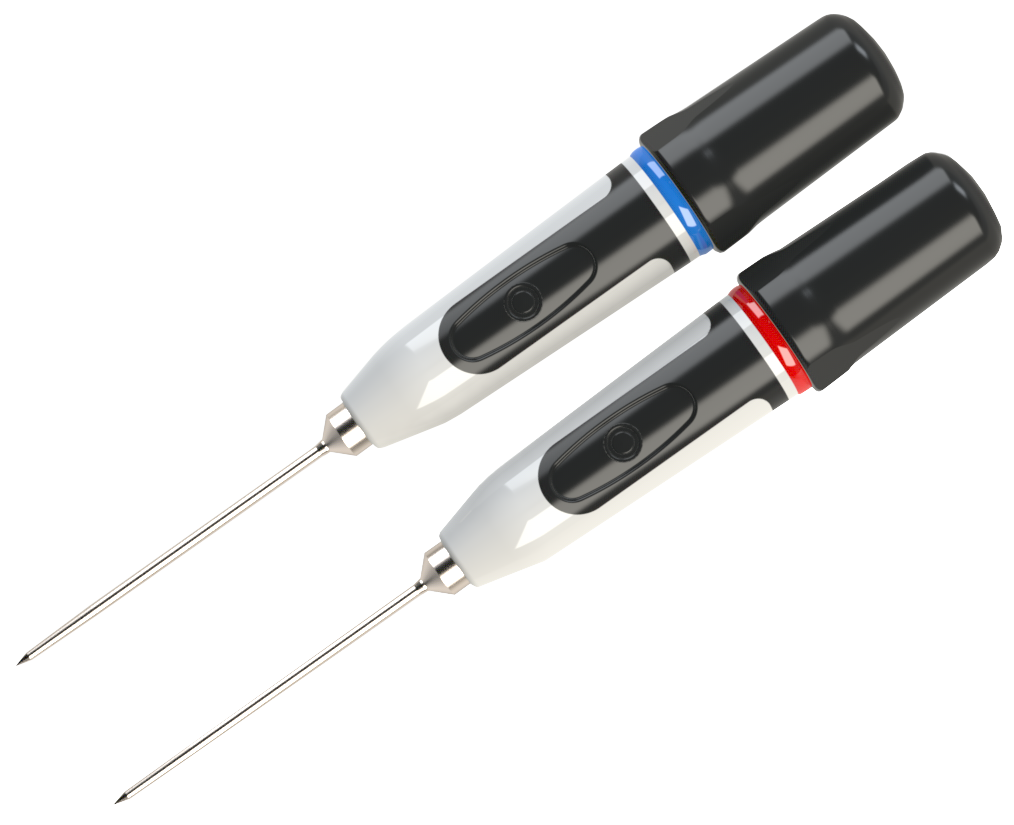
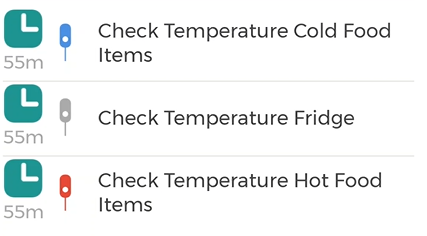
Using the wrong colour probe - Make sure you are using the correct colour probe (red or blue) as shown on the temperature check (see image 4). If a grey probe icon is displayed, you can use either colour.
-
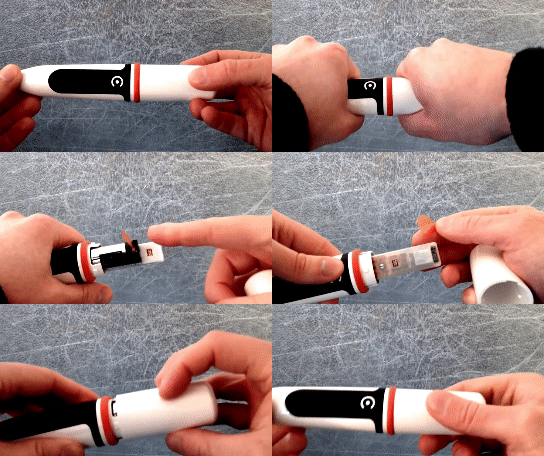
Battery dead — Twist the end cap and replace the battery.
-
Probe is already connected to another mobile device — Make sure no one nearby has the probe pairing screen (see image 2) open on another device.
-
Bluetooth is switched off — If you use the Checkit App on your own phone or tablet, ensure Bluetooth is enabled on your phone or tablet. Bluetooth is always enabled on mobile devices provided by Checkit.
-
Battery isolation tag not removed — If this is your first time using the probe, remove the battery isolation tag (see image 5).