Please follow the appropriate instructions below:
If the probe won’t turn on…
If no LEDs flash when you turn on the probe:
-
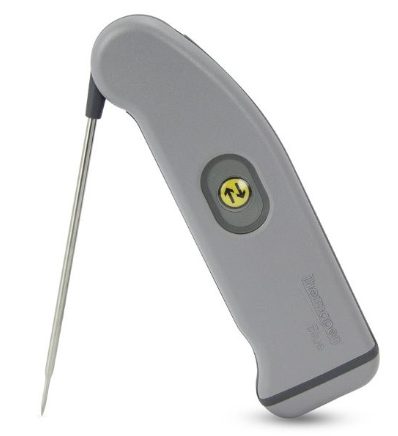
Thermapen (see image 1): Ensure the probe is fully open (until it is fully extended)
-
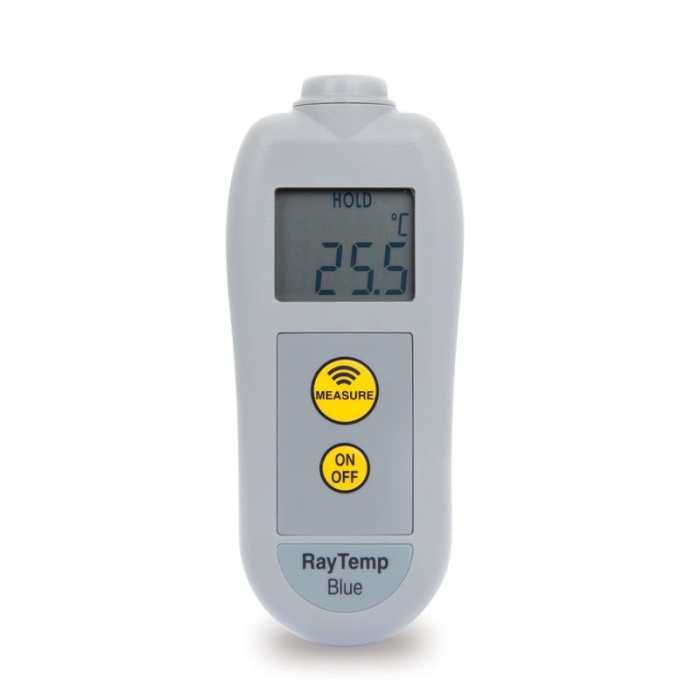
Infrared (see image 2): Press the On/Off button once (don’t hold it down).
-
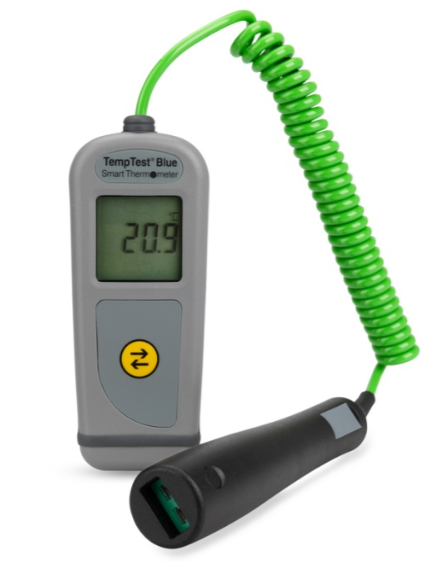
Temptest 2 (see image 3): Press the button once (don’t hold it down).
If the probe still shows no response, replace the battery and try again.
If you can’t see a list of probes to pair…
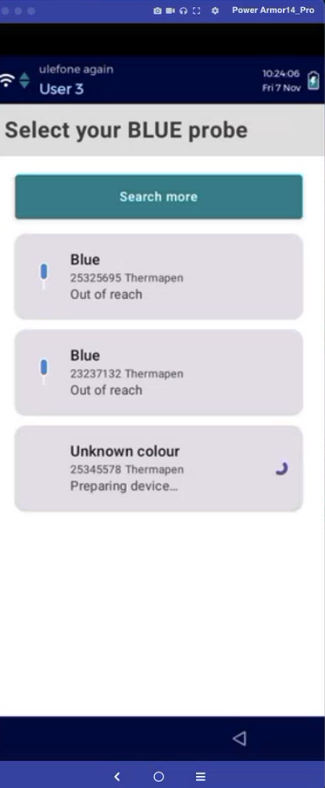
If, when you open the temperature check, you don’t see a list of available probes to pair (see image 4):
-
If you use the Checkit App on your own phone or tablet, check your device settings to ensure Bluetooth is enabled.
-
Ensure you are using the latest version of the app.
-
If this is the first time using an ETI probe on an Android device (including mobile devices provided by Checkit), enable ETI probes.
-
If you are using an ETI probe on your iOS device, please contact us.
If the probe is not on the list or appears ‘out of reach’…
If, when you open the temperature check, you don’t see your probe in the list of probes to pair (see image 4), or the probe is out of reach, this usually means the probe is off, too far away, or is currently paired with another mobile device:
-
Move the probe closer to your mobile device and check that it is turned on.
-
Ensure the probe isn’t being used on another mobile device.
-
Tap Search More to refresh the list.
If the app says “wrong probe colour”…
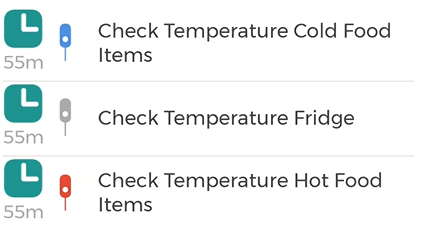
The temperature check shows a red, blue or grey probe icon (see image 5). If the colour doesn't match the probe you’re using, the app will not pair.
-
Switch to the correct probe based on the icon:
-
Red icon → red probe
-
Blue icon → blue probe
-
Grey icon → either red or blue
-
Infrared probes (see image 2) only work when the icon is grey
-
If the probe won’t pair with your device…
If, when you tap the probe in the list, it fails to pair with your mobile device, ensure the probe is turned on, in range of your mobile device, and not currently in use on another mobile device. You do not need to press a button on an ETI probe to pair it with your mobile device. Select the probe from the list on screen instead (see image 4).