
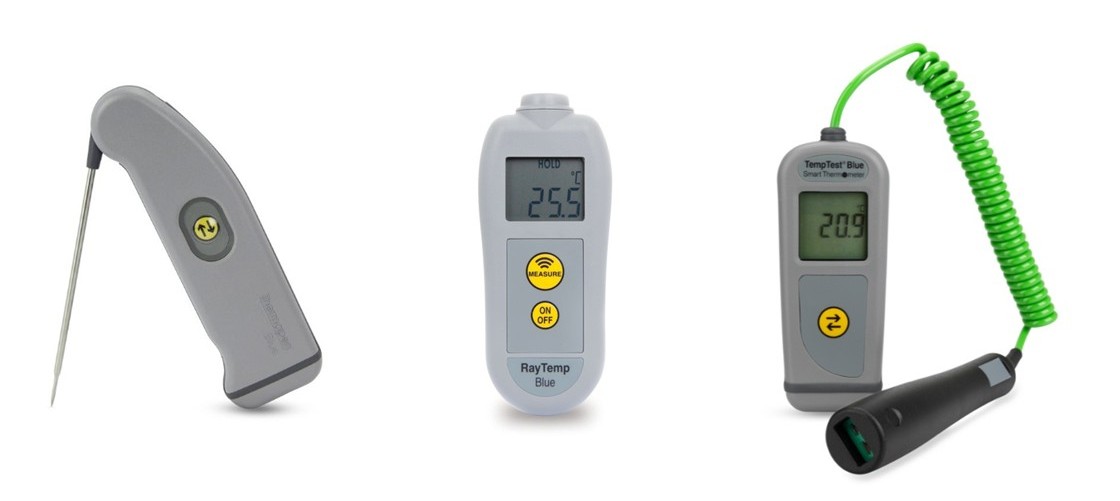
You can take a temperature reading using an ETI probe when instructed to do so on the Checkit App.
ETI probe tips are sharp. Please take care when handling.
You can only take a reading using an ETI probe when completing a temperature check.
If you are using the Checkit App on your own device, ensure that Bluetooth is enabled.
ETI probes must be enabled on each Android device running the Checkit App before first use. Once enabled, all supported ETI probe models will work on that device. See Enable/Disable Checkit/ETI Probes for instructions.
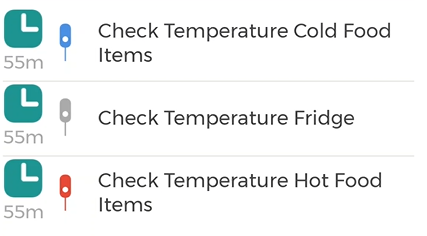
The temperature check will display either a red, blue, or grey probe icon (see image 2).
-
You must use the correct colour probe.
-
If a grey probe icon is displayed, you can use either colour.
-
You can only use an ETI Infared Probe on a grey temperature check.
To complete a temperature check:
-
Unfold the metal probe to turn on the device (ETI Thermapen only).
-
Open the temperature check. You will see a list of probes.
-
Select a probe to pair with your mobile device.
The probe serial number and the status (Out of Reach or Available) will be displayed under each probe. If a probe is out of reach, it is out of range or currently in use.
To pair a new device, tap Search More.
If the probe fails to pair with your device, tap Go Back to Search on the app and repeat step 3.
-
Position the probe tip appropriately to take a measurement.
-
You will see a message on screen stating whether the temperature is:
-
In range
-
Under range
-
Over range
-
-
When the temperature has stabilised, press the record icon.
-
If you are happy with the reading, tap the accept icon on the app. If not, tap the retake icon to repeat the reading.
-
Fold the metal probe to switch off the device (ETI Thermapen only).