
The Alarm Report Mailing List sends an automated email with a report on a department’s alarms.
You can choose to send daily and/or weekly reports.
The reports include:
-
Alarms triggered during the past 24 hours/ 7 days
-
Alarms cleared within the past 24 hours / 7 days
-
Alarms triggered within the past 7 days that remain outstanding
-
Cleared means the device has returned to normal operating conditions, for example, back in temperature range, back online, etc.
-
Outstanding means the device has not returned to normal operating conditions.
Customer Administrators can manage the mailing list directly on the CAM+ Website and can add up to 10 recipients.
Reports are saved on the CAM+ Website for a limited period and are accessible to Customer Administrators. Daily alarm reports are saved for 7 days, and weekly reports for 3 weeks.
The Alarm Report Mailing List is an optional feature — please contact us if you would like to enable it.
How to Manage the Alarm Report Mailing List
You must be a Customer Administrator to manage the Alarm Report Mailing List.
-
Log in to camplus.checkit.net
-
Click the sensor icon on the relevant department.
-
Click View Incidents at the bottom left of the screen.
-
Click Alarm Report.
-
Click Configure Alarm Report.
-
Check the Daily and/or Weekly box as applicable.
-
To add a recipient, enter their email address, then click the + icon.
-
To remove a recipient, click the X icon on their email address.
-
Click Save.
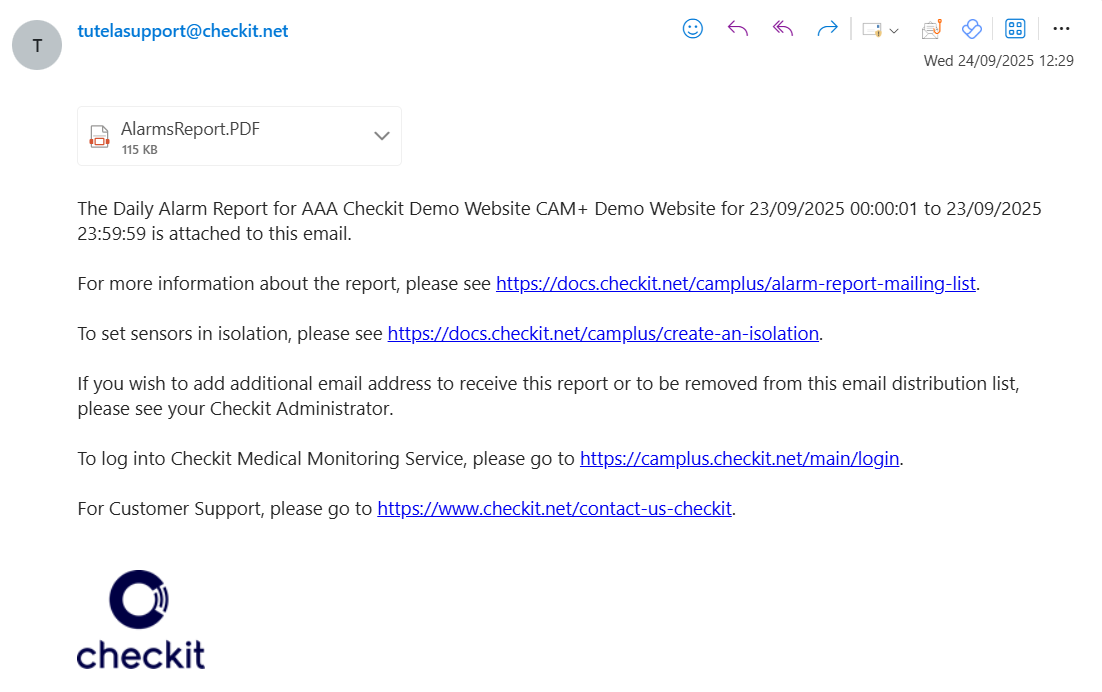
Recipients will receive emails from tutelasupport@checkit.net with the subject Alarms Report Reminder.
Information in the Reports
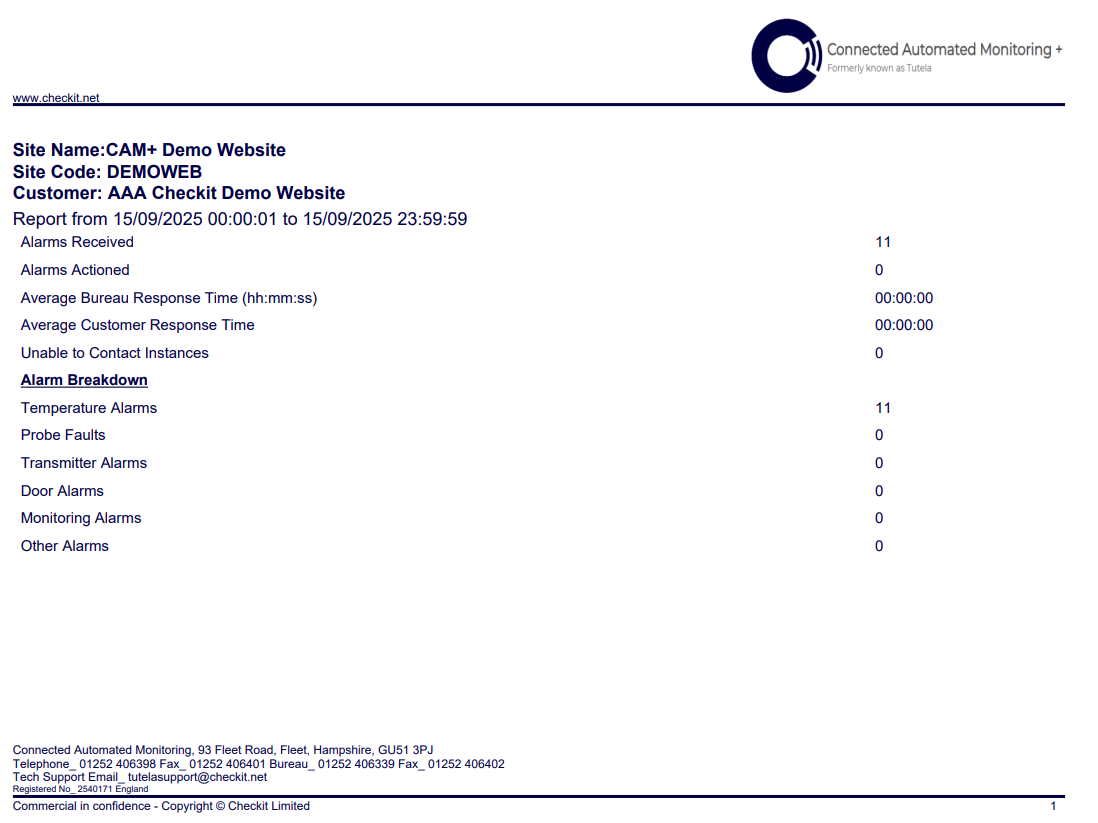
The report contains the following information:
-
A summary including:
-
Total number of alarms received
-
Total number of alarms actioned
-
Average bureau response time (Checkit response time)
-
Average customer response time
-
Total number of instances in which no contacts were able to accept an alarm
-
Total number of alarms by type
-
-
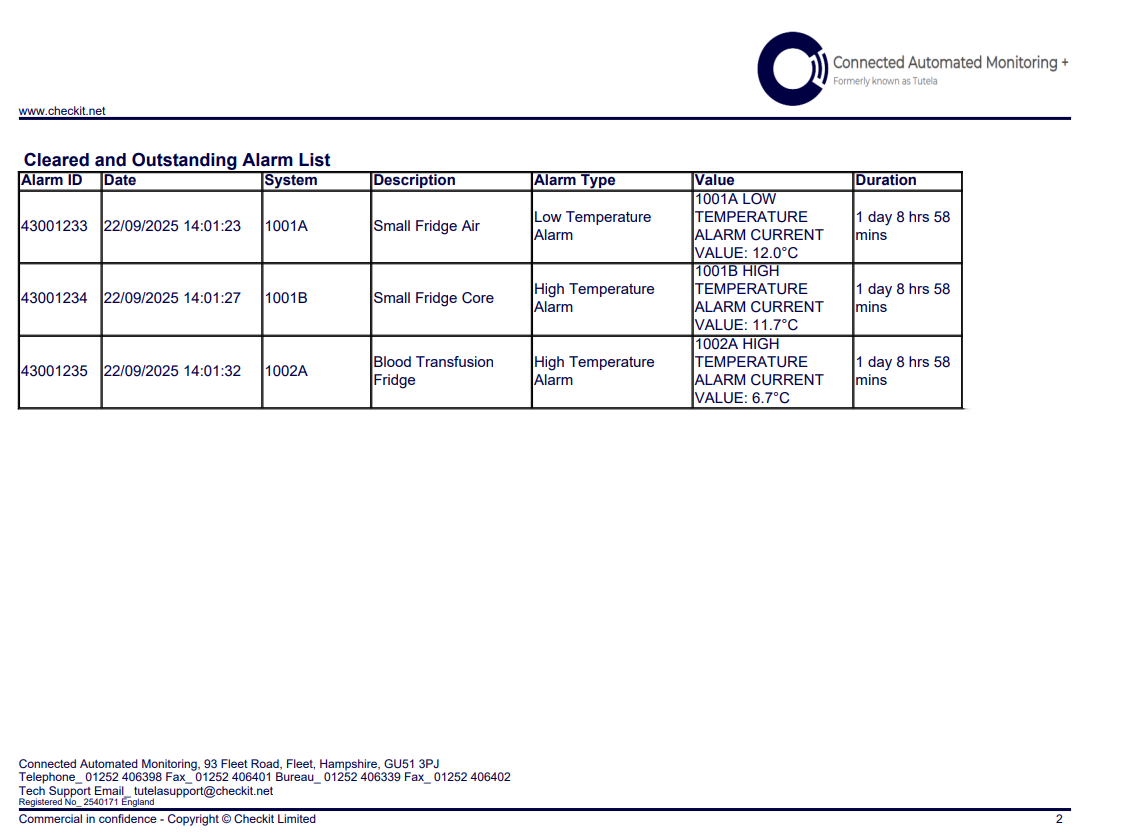
A table detailing all alarms, including:
-
Alarm ID
-
Date
-
System - the device alarming
-
Description- for example, Blood Plasma Refrigeration Unit Temperature Sensor
-
Alarm Type - for example, high temperature, low CO2, etc.
-
Duration (total time the sensor was out of range, from initial out-of-range reading to recovery)
-
How to View Alarm Reports on the CAM+ Website
Reports are saved on the CAM+ Website for a limited period and are accessible to Customer Administrators. Daily alarm reports are saved for 7 days, and weekly reports for 3 weeks.
To view the reports:
-
Log in to camplus.checkit.net
-
Click the sensor icon on any department within the site you want to receive reports on.
-
Click View Incidents at the bottom left of the screen.
-
Click Alarm Reports. You will see a list of daily alarm reports.
-
To view other reports, click Weekly Alarm Report / Monthly Alarm Report.