The eSignature feature allows you to add a legally binding digital signature to records such as Incident Audits and reports saved in the Documents Library.
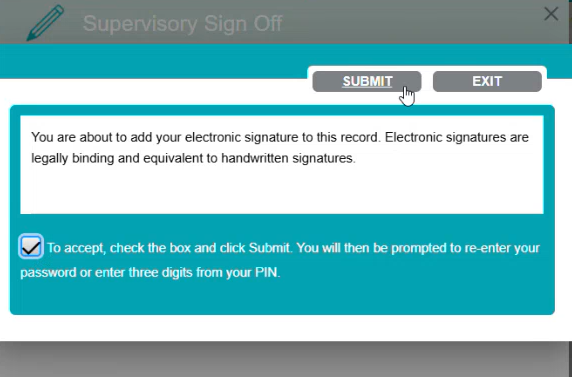
Users can still sign these records using the existing method: entering their PIN. However, to meet 21 CFR Part 11 requirements, users must confirm that they understand the signature is legally binding (see image 1) and verify their identity before applying a signature. The eSignature feature introduces enhanced authentication to support these regulatory standards.
Verification methods depend on how your account is configured:
-
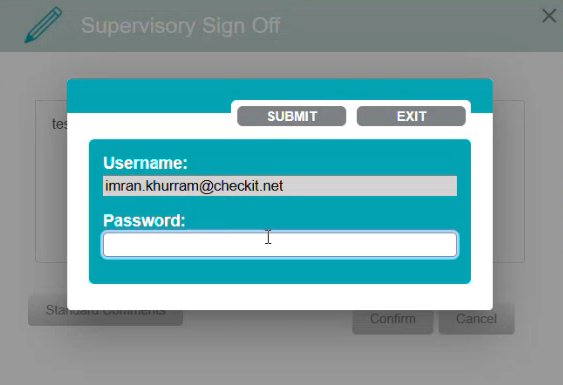
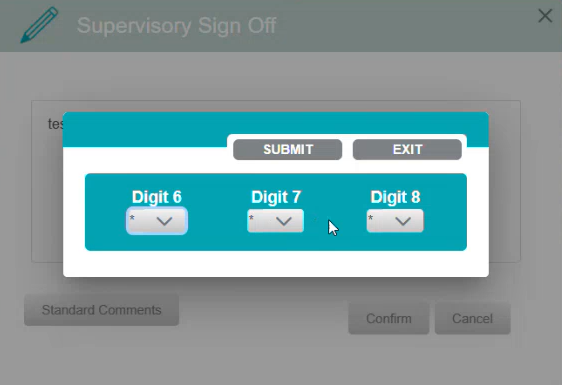
Accounts without Single Sign-On (SSO): You can require users to verify their identity by entering their username and either their password (see image 2) or PIN (see image 3).
-
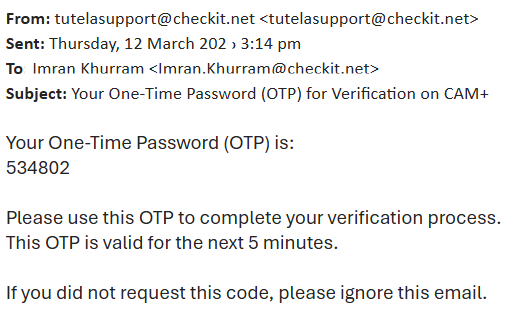
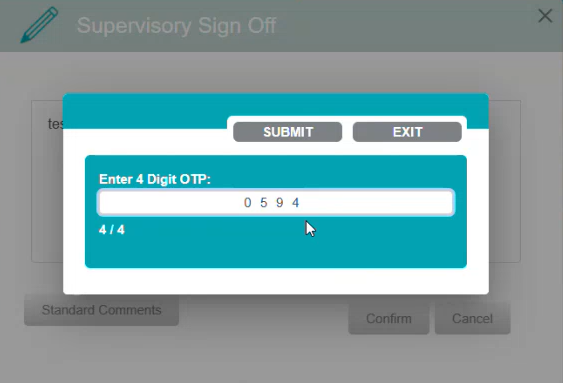
Accounts with Single Sign-On (SSO): You can require users to verify their identity by entering their username and either a one-time password (OTP) (see image 4 & 5) or PIN (see image 3).
Important Notes
eSignature is an optional feature.
eSignature is an optional feature. Please contact us to enable it
Signatures are not handwritten.
The eSignature feature does not add a handwritten or cursive signature to a record. Instead, the system records the user’s name as a typed signature alongside the signature field to indicate who signed the record.
Permissions are still required to sign records.
Users must have the appropriate user permissions before they can add a signature. For example:
-
The Approve Incidents permission is required to sign off an incident.
-
The Sign Reports permission is required to add a signature to a report in the Documents Library.
If a user does not have the required permission, they will not be able to apply a signature even if the eSignature feature is enabled.
This verification only applies to adding signatures.
The enhanced authentication described in this article only applies when adding a signature to a record.
Other actions that require identity verification—such as creating an isolation or completing the first three fields of an incident audit—continue to use the existing verification method, where users enter three digits of their PIN.
One-time passwords (OTP) are sent to the user’s configured email address
If OTP verification is required, the one-time password is sent to the email address configured for the user’s account.
For example, if a user signs in with the username john.brown@medixbio.net but their account email is set to john.brown@gmail.com, the OTP will be sent to john.brown@gmail.com.
One-time passwords (OTP) are valid for 5 minutes only If OTP verification is required, the one-time password is only valid for 5 minutes.